Having problems sending emails to Gmail accounts? Are your emails getting “bounced”?
How to Add an SPF Record
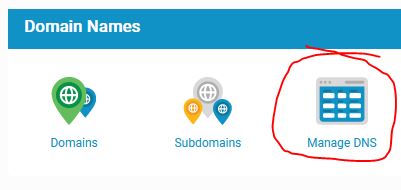 Gmail has recently required senders to add SPF Records to protect against spoofing and phishing, and help prevent messages from being marked as spam. You can add SPF records ‘manually’ by signing into your control panel, then access the DNS Management interface for your domain name. Towards the bottom of the Manage DNS page you will see three inputs to allow you to add new records. To add it:
- Leave the Name field blank
- Select TXT for Type
- Enter v=spf1 include:spf.stackmail.com a mx -all as data
Then save the changes. Your domain is now protected by an SPF record.
How to add a DKIM Signature
DKIM, like SPF, is a standard that enables a specific aspect of the email sending process to be authenticated. The premise of DKIM is to check that an email is really from the domain or sender that it said it was sent from and if it has been altered in any way in transit.
- Head to control panel
- Select the DomainKeys icon.
- Ensure you’ve selected the domain you want to add the DKIM record-to.
- Add a Selector. This can be any value or name you like. It’s simply a field to identify the DKIM record. Then select Add Signature.
From here you’re all done: your emails will use DKIM as a method to authenticate email.